





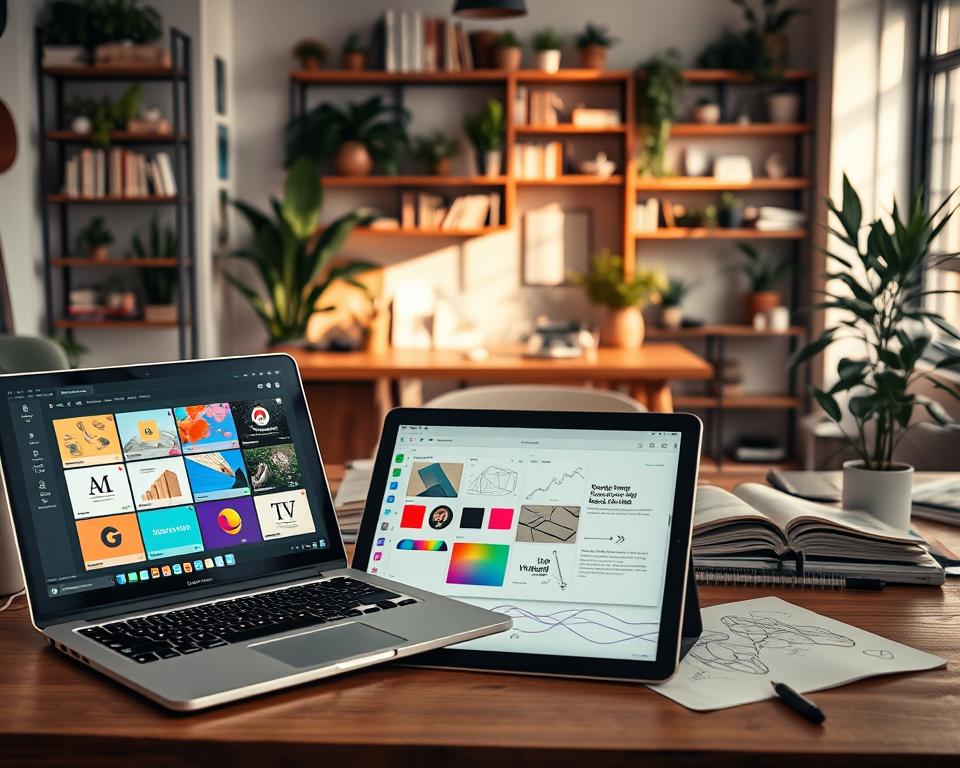
Finding the right graphic design tools can be tough. Marketers, entrepreneurs, and designers often look for alternatives to Canva. There are many design software options with unique features and benefits. This article will look at the top Canva alternatives, covering their features, pros, and cons.
Looking for advanced features or an easy-to-use interface? Our detailed guide will help you find the best Canva alternatives. We’ll talk about Adobe Express, Visme, and more. You’ll learn about their strengths and weaknesses, making it easier to choose the right design tool for you.
Table of Contents
Key Takeaways
- Discover the top alternatives to Canva for graphic design needs.
- Explore the unique features and benefits of each design software.
- Learn about the pros and cons of popular Canva alternatives.
- Find the best design tool for your specific needs and preferences.
- Get insights into the strengths and weaknesses of various graphic design tools.
Understanding the Need for Design Tool Alternatives
Canva is popular, but it has its downsides. Many look for design tools that meet their specific needs. For those stuck with Canva’s limits, finding better tools is urgent.
One big issue with Canva is finding free templates without premium assets. Users often have to swap these out, which takes time and can be annoying. Also, Canva’s advanced tools are not enough for pros or those with complex designs.

Knowing Canva’s limits helps find better design tools. Different people have different design needs. Some need advanced features for detailed designs, while others prefer simple, easy-to-use tools.
The table below shows Canva’s limits and how other tools can help.
| Limitation | Canva | Alternative Design Tools |
|---|---|---|
| Template Availability | Limited free templates without premium assets | More comprehensive libraries, including free assets |
| Advanced Features | Limited advanced features for free users | More robust feature sets for complex designs |
| User Interface | Simple, but sometimes restrictive | More flexible and customizable interfaces |
In summary, while Canva is great for many, its limits show the need for design tool alternatives. Understanding these needs helps users choose the right tools for their graphic design needs.
What Makes a Great Canva Alternative
A top Canva alternative should mix flexibility, ease of use, and lots of features. It’s key to pick a graphic design tool that fits your needs. This could be for professional design work or creating visual content for your business.
The flexibility of a design tool is very important. It lets users change the software to fit their work and creative needs. This means being able to tweak templates, adjust design parts, and link with other tools and sites.
Ease of use is also a big deal. A good Canva alternative should have a simple interface. This makes it easy to use, even for those new to design.
Having a wide range of features is also crucial. This includes lots of templates, a big library of design elements, and advanced editing tools. The software should also be affordable and offer great value, whether it’s a one-time buy or a subscription.
Today, it’s important for design software to be available on different devices. It should work on both desktops and mobiles. This lets users design from anywhere.
For teams and businesses, the chance to collaborate is also key. A great Canva alternative should let many users work on a design together. This includes features like real-time comments, editing, and version control.
By looking at these points, you can find a Canva alternative that boosts your design work. It will also make your work more productive and creative.
Adobe Express
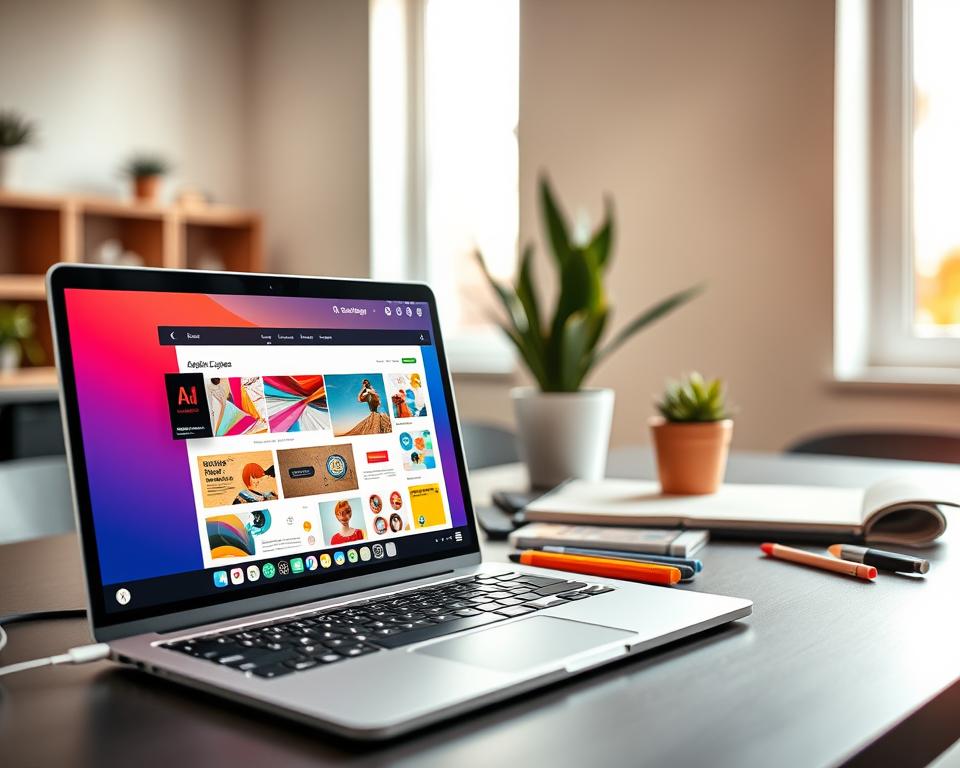
Adobe Express is a tool for both designers and non-designers. It’s part of Adobe’s creative tools. It works well with other Adobe apps, making it great for those already using Adobe.
Overview
Adobe Express makes graphic design easy. It has a simple interface but still offers lots of features. Its AI helps with image editing and creation, making it perfect for visual content.
Key Features
Adobe Express has some key features:
- AI-powered image editing and generation
- Works well with other Adobe apps like Photoshop and Illustrator
- A huge template library for different designs
- Customizable fonts and graphics
Pros
Using Adobe Express has many benefits:
- Streamlined workflow: It works smoothly with Adobe’s Creative Cloud.
- Powerful AI tools: It improves your designs with advanced AI editing.
- Accessibility: It’s easy for both pros and beginners to use.
A design expert said,
“Adobe Express has changed graphic design. It makes it easier and more efficient.”
Cons
Adobe Express also has some downsides:
- Limited advanced features: It doesn’t have all the features of top software like Photoshop.
- Dependence on Adobe ecosystem: While it’s great for Adobe users, it might not be for everyone.
- Learning curve: It’s easy to use, but there’s still a bit to learn, especially for new users.
In summary, Adobe Express is a strong design tool. It’s easy to use and works well with Adobe apps. Its AI features make it a good choice for many users.
Figma
Figma is a top choice for UI/UX design, loved by designers and developers. It’s known for its great collaboration tools and live editing.
Overview
Figma is a cloud-based tool for UI/UX design. It lets users create, work together, and test designs live. Its easy-to-use interface and strong features meet the needs of both designers and developers.
Key Features
Figma has many features that make it perfect for UI/UX design. Some key ones are:
- Real-time collaboration
- Cloud-based platform
- Prototyping and testing
- Design systems management
- Version history
Pros
Figma is popular for good reasons. Here are some of its benefits:
- Enhanced Collaboration: Figma lets many users work on a project at the same time.
- Cross-Platform Compatibility: You can use Figma from any device with a web browser.
- Robust Design Tools: Figma has a wide range of design tools for UI/UX designers.
Cons
Figma is great, but it has some downsides. Some of these are:
- Limited offline capabilities
- Steep learning curve for advanced features
- Resource-intensive for large projects
To see how Figma stacks up, here’s a comparison table with some competitors:
| Feature | Figma | Adobe XD | Sketch |
|---|---|---|---|
| Real-time Collaboration | Yes | Yes | No |
| Cloud-Based | Yes | Yes | No |
| Prototyping | Yes | Yes | Yes |

Visme
Visme is a top choice for creating engaging presentations and infographics. It offers advanced data visualization and interactive features. This makes it a go-to for those wanting more than basic design tools.

Overview
Visme is more than just a graphic design tool. It’s great for interactive presentations and data visualizations. It’s perfect for businesses, educators, and marketers who need to share complex info in a fun way.
Key Features
Visme has a wide range of templates and advanced data tools. It also has interactive elements for presentations. Its user-friendly interface is great for both pros and beginners.
Some key features include:
- Advanced data visualization tools for infographics and charts
- Interactive presentation features to engage audiences
- A vast template library for various design needs
- A user-friendly interface for easy navigation
If you’re looking for more design tools, check out Photoshop alternatives. They’re great for photo editing and can enhance your design workflow.
Pros
Visme is great for creating interactive and dynamic content. It offers a lot of customization options. Plus, it’s easy to learn, even for those new to design.
Cons
While Visme is powerful, it might lack some advanced features. It can also be pricey for those on a budget.
| Feature | Description | Benefit |
|---|---|---|
| Data Visualization | Advanced tools for creating infographics and charts | Enhances the presentation of complex data |
| Interactive Presentations | Features to engage audiences and make presentations more dynamic | Increases audience engagement and retention |
| Template Library | A vast collection of templates for various design needs | Saves time and inspires creativity |
VistaCreate (Crello)
VistaCreate, once known as Crello, is now a top graphic design tool. It has lots of templates and features for all kinds of designs. It’s great for making designs for different products because it works with print-on-demand services.
Overview
VistaCreate is easy to use, perfect for both new and experienced designers. It has a huge library of templates and lots of ways to customize your designs.

Key Features
- A vast library of graphic design templates for various applications.
- Integration with print-on-demand services, enabling users to print designs on multiple products.
- Advanced customization options, including a wide range of fonts, images, and design elements.
- User-friendly interface that caters to both beginners and professionals.
Pros
VistaCreate’s big plus is its print-on-demand integration. It makes it easy to turn designs into real products. Plus, its extensive template library and customization options make it very versatile.
Cons
Some might find VistaCreate’s many options too much. Also, the quality of designs can vary based on how well you know the platform.
PicMonkey
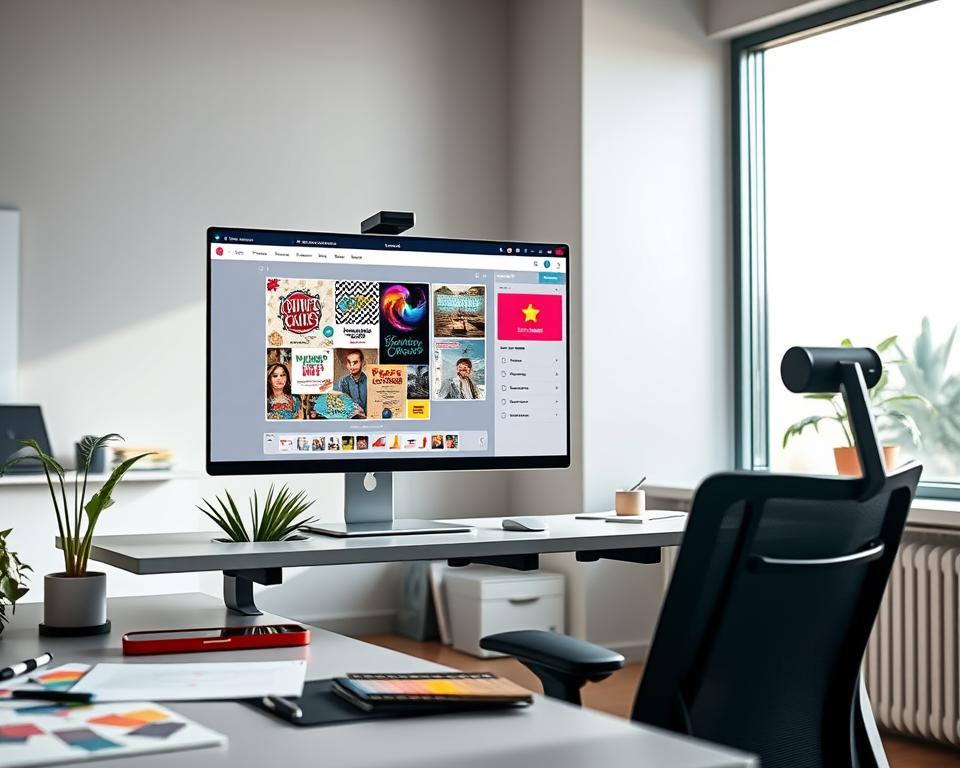
PicMonkey is a versatile tool for graphic design and photo editing. It suits both professionals and amateurs. It has a wide range of features, making it a top choice among Canva alternatives.
Overview
PicMonkey is famous for its photo editing capabilities. It offers many tools to enhance and change images easily. It also has design features for making various visual content, like social media graphics and presentations.
Key Features
PicMonkey has some key features:
- Advanced photo editing tools with touch-up and effects capabilities
- A user-friendly design interface for creating custom graphics
- A vast library of templates and design assets
- Collaboration tools for team projects
Pros
PicMonkey’s strengths are:
- Robust photo editing capabilities that rival professional-grade software
- Intuitive design interface that makes it accessible to users of all skill levels
- Extensive template library that streamlines the design process
Cons
Some users might find:
- The interface can be overwhelming for beginners due to the sheer number of features
- Limited advanced features compared to professional design software like Adobe Creative Cloud
PicMonkey is a valuable tool for anyone needing a comprehensive design and photo editing solution. Its mix of features and ease of use makes it a great option among Canva alternatives.
Snappa
Snappa is a great choice for those who want a fast and easy design platform. It helps users make high-quality social media graphics and other visual content quickly.
Overview
Snappa is a design tool made for speed. It’s perfect for making social media graphics and other visual content. It has many templates and is easy to use, for both businesses and individuals.
Key Features
Snappa has a huge library of templates for different social media platforms. It has a simple editor and makes it easy to resize designs. It also has a wide range of fonts, images, and graphics.
Snappa is great at making social media graphics that look good on different platforms. This ensures your content looks professional and engaging.
Pros
- Snappa is very user-friendly, making it easy for those without design experience.
- It has a huge selection of templates and design elements, allowing for lots of customization.
- The platform is fast, letting users create and publish content quickly.
Cons
Snappa has some limitations. For example, its design capabilities are not as broad as some competitors. The free version also has limited features.
Despite these drawbacks, Snappa is still a good choice for making social media content.
Desygner
Desygner is a top choice in marketing design tools. It’s easy to use and very versatile. It helps marketers and businesses make professional marketing materials and presentations.
Overview
Desygner makes creating visual content for marketing easy. It has lots of templates and a drag-and-drop editor. This makes it simple for anyone to use, even without design experience. For more on creating a tool like Canva, check out this visual design guide.
Key Features
- Extensive Template Library: Desygner has a huge library of templates for marketing, presentations, and social media.
- User-Friendly Editor: The drag-and-drop editor lets users easily change templates and make new designs.
- Collaboration Tools: Desygner has tools for real-time collaboration, making team work on designs easier.
- Brand Kit: Users can upload their brand assets to keep designs consistent.
Pros
- Accessibility: Desygner’s easy interface is great for those without design experience.
- Versatility: It supports a wide range of visual content, from marketing to presentations.
- Time-Saving: With its many templates and simple editor, Desygner saves time for quick, professional designs.
Cons
- Limited Advanced Features: Desygner is perfect for basic to intermediate design needs but lacks advanced features for pros.
- Customization Limitations: Some users might find the customization options not as extensive as in more advanced design tools.
Stencil
Stencil is a great choice for those looking for a simple design solution. It’s easier to use than complex graphic design software. It helps you create visual content for blogs, social media, and more.
Overview
Stencil is an online design tool that’s easy to use. It lets you make images fast for different needs. It’s perfect for those who want quality graphics quickly, without needing to be a design expert.
Key benefits of Stencil include its easy-to-use interface. It also has a wide range of templates and lots of fonts and graphics.
Key Features
Stencil’s key features include a drag-and-drop editor and a huge template library. It also has a big collection of graphics and fonts. These features help users make professional designs easily.
- Drag-and-drop editor for easy design customization
- Access to a vast library of templates for various applications
- A wide range of fonts and graphics to enhance designs
Pros
One big advantage of Stencil is how simple and fast it is. Users can make high-quality graphics quickly. It also has lots of templates and design elements for different needs.
Other benefits include its user-friendly interface. It lets users make professional-looking designs without needing advanced design skills.
Cons
While Stencil has many benefits, some users might find its design capabilities not as advanced. The quality of the output also depends on the user’s design choices and how well they know the tool.
Also, like many design tools, Stencil’s full features might require a subscription. This could be a problem for users on a tight budget.
Piktochart
Piktochart is a top choice for making infographics and presentations. It’s easy to use and has lots of features and templates. This makes it a great tool for designers and non-designers alike.
Overview
Piktochart is famous for its infographic templates and data tools. It’s perfect for anyone wanting to make eye-catching visual content. The platform is easy to navigate, making design simple.
Key Features
Piktochart has many infographic templates, a drag-and-drop editor, and advanced data tools. It also lets you customize your designs. This means you can make your content exactly how you want it.
- Infographic templates
- Drag-and-drop editor
- Data visualization tools
- Customization options
Pros
Piktochart is easy to use, even for those new to design. Its templates and tools help you make professional-looking infographics and presentations. This makes it a great choice for anyone.
| Feature | Description | Benefit |
|---|---|---|
| Infographic Templates | Pre-designed templates for various infographic types | Saves time and effort |
| Drag-and-Drop Editor | User-friendly editing interface | Easy to use for non-designers |
| Data Visualization Tools | Advanced tools for creating charts and graphs | Enhances data presentation |
Cons
Some users might find Piktochart’s features a bit limited. The free version also has some restrictions. To get more advanced features, you need to subscribe.
If you’re looking for more Canva alternatives, Piktochart is a good option. It’s especially great for infographic design.
More Versatile Design Platforms
There are more design platforms beyond the popular ones. These platforms offer a wide range of features to enhance your design experience.
Easil
Overview
Easil is a graphic design platform with many templates and tools. It’s easy to use, making it great for both pros and beginners.
Easil has a huge template library, a drag-and-drop editor, and lots of fonts and graphics. It also has tools for teams to work together smoothly.
- Drag-and-drop editor for easy design
- Access to a vast template library
- Collaboration tools for team projects
Pros
Easil is easy to use, has lots of templates, and great team tools. It’s perfect for businesses and individuals who want a simple design solution.
Cons
Some might find Easil’s customization options limited. The free version also has fewer features.
Simplified
Overview
Simplified is an AI-powered design tool that simplifies the design process. It has templates, design tools, and social media scheduling.
Key Features
Simplified uses AI for design help, has a huge template library, and integrates with social media. It also has tools for managing your brand.
- AI-powered design assistance
- Social media scheduling and integration
- Brand management tools
Pros
Simplified stands out with its AI features, offering smart suggestions and automations. Its all-in-one platform is a big plus.
Cons
Not everyone likes relying on AI for design. Some features might need time to learn.
Fotor
Overview
Fotor is a design platform with tools for graphic design, photo editing, and more. It’s for both pros and hobbyists.
Key Features
Fotor has design and editing tools, a huge template library, and collaboration features. It also has advanced photo editing.
- Comprehensive design and editing tools
- Access to a vast template library
- Advanced photo editing features
Pros
Fotor is versatile and has many features, making it valuable for designers. Its photo editing is especially good.
Cons
Fotor’s interface can be too much with all its features. Some might find the pricing not competitive enough.
Top 15 Canva Alternatives – Features, Pros & Cons: Additional Options
Looking for more options? BeFunky, Pixlr, and Gravit Designer are great Canva alternatives. They have different design tools and features for various needs and tastes.
BeFunky
Overview
BeFunky is a versatile graphic design tool. It has many templates and design elements. It’s easy to use, making it perfect for both newbies and experts.
Key Features
BeFunky has a huge library of templates and a photo editor. It also has design tools and advanced features like batch processing and export options.
Pros
- User-friendly interface: Easy to navigate, even for those without extensive design experience.
- Versatile: Offers a wide range of design tools and templates.
- Advanced features: Includes batch processing and various export options.
Cons
- Limited collaboration features: Not ideal for team projects that require real-time collaboration.
- Customer support: Some users have reported mixed experiences with customer support.
Pixlr
Overview
Pixlr is a powerful tool for photo editing and graphic design. It’s versatile and used by both professionals and hobbyists.
Key Features
Pixlr has many photo editing tools like layers, filters, and effects. It also has templates for social media graphics and more.
Pros
- Advanced photo editing: Offers a range of tools and features for detailed editing.
- Cross-platform: Available on both desktop and mobile devices.
- Free version available: Offers a free version with substantial features.
Cons
- Steep learning curve: The interface can be overwhelming for beginners.
- Ads in the free version: The free version includes ads, which can be distracting.
Gravit Designer
Overview
Gravit Designer is a professional-grade graphic design tool. It offers a wide range of features and tools. It’s versatile and used for various design tasks, from logos to complex illustrations.
Key Features
Gravit Designer has advanced vector editing tools and a user-friendly interface. It’s available as a web-based tool and a desktop application.
Pros
- Professional-grade features: Offers advanced tools for complex design tasks.
- Cross-platform compatibility: Available on multiple platforms, including web and desktop.
- Constantly updated: The developers regularly update the software with new features.
Cons
- Resource-intensive: Can be demanding on system resources, particularly for complex designs.
- Limited raster editing capabilities: While excellent for vector graphics, it’s not ideal for raster editing.
To explore more Canva alternatives and their features, you can visit this comprehensive guide.
| Design Tool | Key Features | Pros | Cons |
|---|---|---|---|
| BeFunky | Templates, photo editor, batch processing | User-friendly, versatile, advanced features | Limited collaboration, mixed customer support |
| Pixlr | Photo editing tools, layers, filters, effects | Advanced photo editing, cross-platform, free version | Steep learning curve, ads in free version |
| Gravit Designer | Vector editing tools, templates, cross-platform | Professional-grade, constantly updated, versatile | Resource-intensive, limited raster editing |
Choosing the Right Design Tool for Your Needs
Choosing the right design tool is key to meeting your project goals. It’s important to look at your graphic design needs. Do you need to make presentations, social media graphics, or other visual content?
First, think about the types of projects you usually do. This will help you know what features you need in a design tool. For example, if you focus on social media, look for tools with lots of templates and easy editing.
Another important thing is your budget. Some tools offer free versions or trials, while others cost money. Make sure to compare the costs and what you get for them.
Here’s a quick look at some key features of top Canva alternatives:
| Design Tool | Key Features | Price |
|---|---|---|
| Adobe Express | Template library, easy editing, integration with Adobe suite | Free, with premium features starting at $9.99/month |
| Figma | Collaborative design, vector editing, robust file compatibility | Free, with team plans starting at $12/user/month |
| Visme | Presentation and infographic creation, data visualization | $12.25/month (billed annually) |
When comparing Canva alternatives, think about what each tool does best for you. This will help you pick the tool that fits your creative projects and workflow.
The best design tool for you depends on your needs and what you like. By looking at features, cost, and how easy it is to use, you can choose wisely. This will boost your design skills.
Conclusion
Choosing the right graphic design software can be tough. Canva is popular, but it might not fit everyone’s needs. The top 15 Canva alternatives offer different features and benefits for various design needs.
By knowing what you need and comparing these options, you can pick the best design tool for your work. Whether you want advanced features or an easy-to-use interface, there’s a software out there for you.
Think about your design goals and what features are most important. With the right software, you can make amazing visuals that improve your brand and engage your audience.